
WordPress internal links connect one page, post, category, or resource on your website to another URL on the same domain. They help visitors discover useful content, improve website navigation, and give search engines clearer paths for crawling and understanding your site.
A strong internal linking strategy can also connect related topics, support important pages, and prevent valuable content from becoming isolated. In this guide, you will learn how to add internal links properly in WordPress, which mistakes to avoid, and 11 practical best practices for building a clearer, more SEO-friendly website structure.
What Are WordPress Internal Links?
WordPress internal links are hyperlinks that lead users from one page on your website to another page on the same domain. For example, a blog post about keyword research may link to a related guide about content optimization. Unlike external links, which point to another website, internal links keep users within your own site.
Internal Links vs External Links
Navigational links appear in menus, sidebars, footers, and breadcrumbs. Contextual links appear inside the main body of a page and usually provide stronger topical relevance.
How WordPress Internal Links Support Site Structure
Internal links create relationships between your homepage, categories, services, products, blog posts, and topic hubs. A strong structure often connects supporting articles to broader pillar pages, helping search engines understand content hierarchy and topic relationships.
Why WordPress Internal Links Are Important for SEO
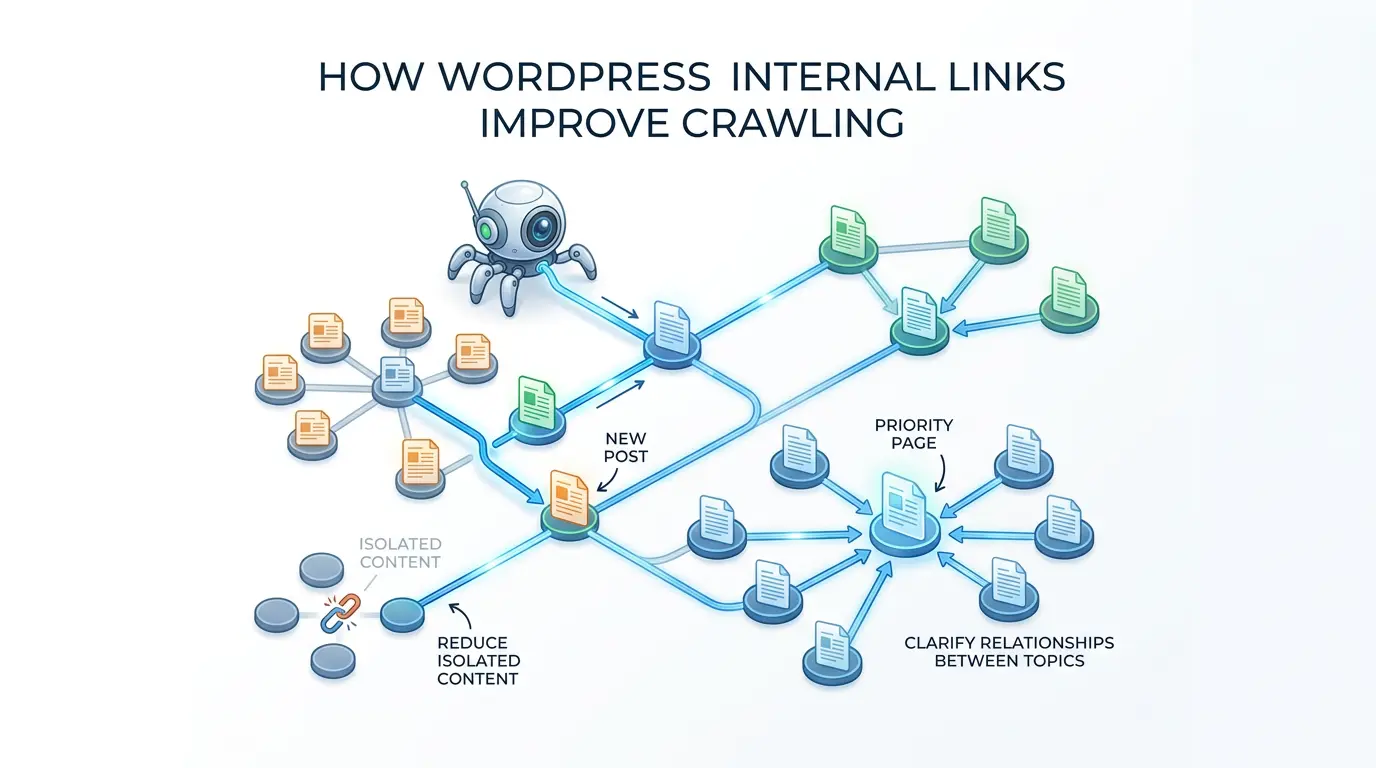
How WordPress Internal Links Improve Crawling
Search-engine crawlers follow links to discover content. When important pages receive relevant internal links, they become easier to find and understand.
- Create crawl paths to new posts
- Reduce isolated content
- Connect older and newer articles
- Make priority pages easier to reach
- Clarify relationships between topics
Internal links do not guarantee indexing, but they help search engines discover pages more efficiently.
How Internal Links Distribute Authority
Pages with backlinks, traffic, and strong rankings may pass some value to related pages through internal links. This does not mean every page should receive the same number of links. Important commercial pages, pillar content, and valuable guides may deserve more support than temporary or low-priority pages. Context and relevance are more important than link quantity.
How Internal Links Improve User Experience
Helpful internal links guide visitors toward additional information without forcing them to search elsewhere.
- Understand unfamiliar terms
- Explore related topics
- Find detailed tutorials
- Compare products or services
- Move toward a conversion page
The best internal links feel useful rather than promotional. They answer the reader’s next question at the right moment.
How to Add Internal Links Properly in WordPress
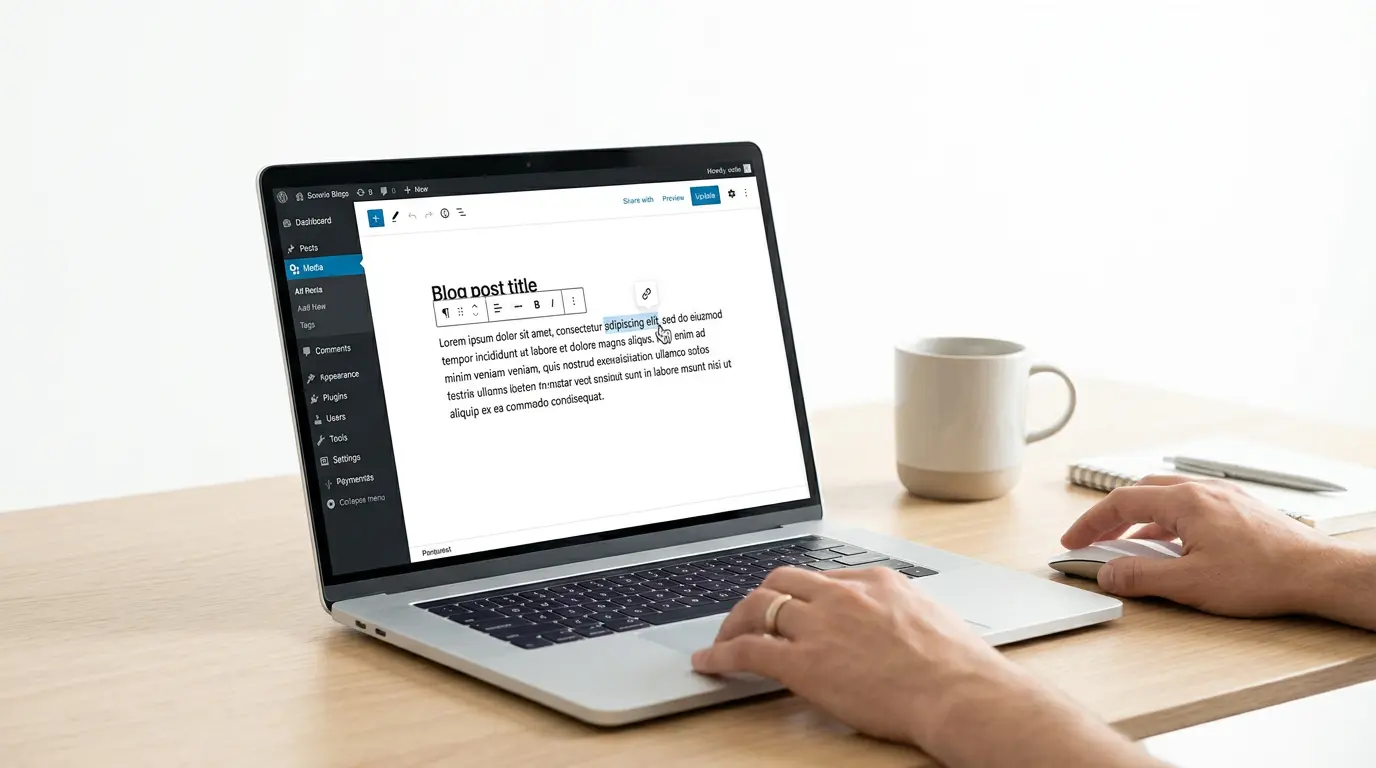
Adding Links With the WordPress Editor
In Gutenberg or the Classic Editor:
- Highlight the relevant anchor text.
- Click the link icon.
- Search for an existing post or page.
- Select the correct destination.
- Save or update the page.
- Test the link after publishing.
Use descriptive text instead of generic wording such as “click here.”
Adding Links With Elementor
In Elementor, highlight text inside the Text Editor widget and add the destination URL. Buttons and images can also be linked using their link settings.
Internal links usually do not need to open in a new tab. Always check mobile and tablet layouts after adding linked elements.
11 Best Practices for WordPress Internal Links
Manual Linking vs a WordPress Internal Linking Plugin
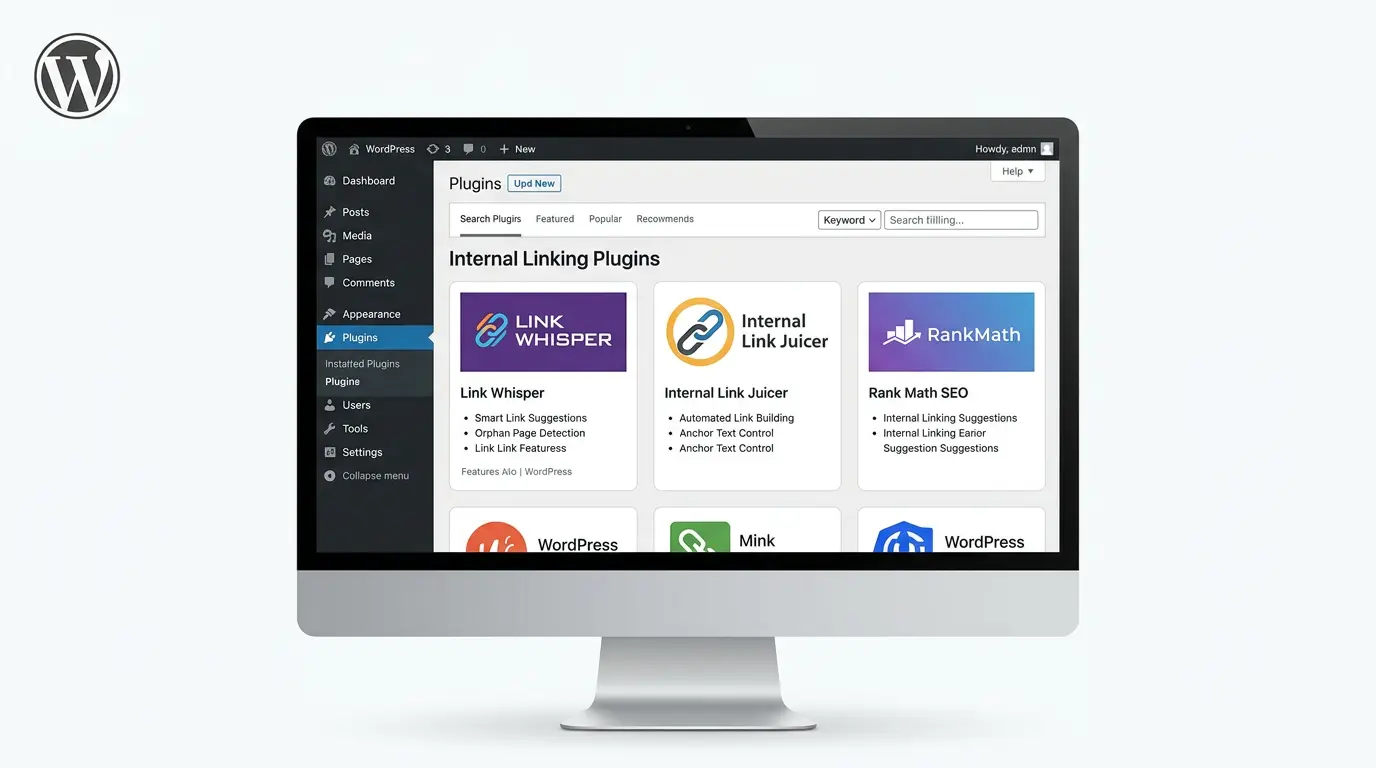
Manual linking provides better editorial control, natural anchor text, and stronger contextual relevance.
A WordPress internal linking plugin can help with:
- Link suggestions
- Orphan-page detection
- Anchor-text reports
- Internal-link counts
- Broken-link monitoring
- Automated opportunities
Plugins are useful for large blogs, e-commerce websites, and content-heavy sites. However, automated suggestions should support human decisions rather than replace them.
Common WordPress Internal Linking Mistakes
WordPress Internal Links SEO Checklist
- Link every valuable page from a relevant page.
- Use descriptive anchor text.
- Prioritize contextual links.
- Connect supporting articles to pillar pages.
- Link older content to new posts.
- Fix broken links and redirect chains.
- Review orphan pages.
- Keep important pages easy to reach.
- Avoid excessive exact-match anchors.
- Check links during every major content update.
Final Thoughts
Effective WordPress internal links improve content discovery, website structure, navigation, crawling, and authority flow. They also help readers explore related information without leaving your website.
Begin with your most important pages. Identify content with few or no incoming links, then add relevant contextual connections from established articles. Continue reviewing your structure whenever you publish, update, remove, or migrate content.
Frequently Asked Questions About WordPress Internal Links
WordPress internal links are hyperlinks connecting one page, post, category, or resource to another URL on the same website. They help users discover related content and allow search engines to understand how pages are connected.
There is no fixed number. The right amount depends on content length, topic depth, search intent, and reader needs. Add links only when they are genuinely useful and relevant.
Yes. Relevant internal links help search engines discover pages, understand site structure, and connect related topics. They can also distribute authority and improve user navigation.
The best plugin depends on your website size and workflow. Useful features include link suggestions, orphan-page reports, anchor-text tracking, link analysis, and broken-link monitoring.
Use an SEO crawler, WordPress SEO plugin, internal-link reporting tool, or content inventory. Compare known URLs with pages found during a crawl, then connect valuable orphan pages to relevant content.